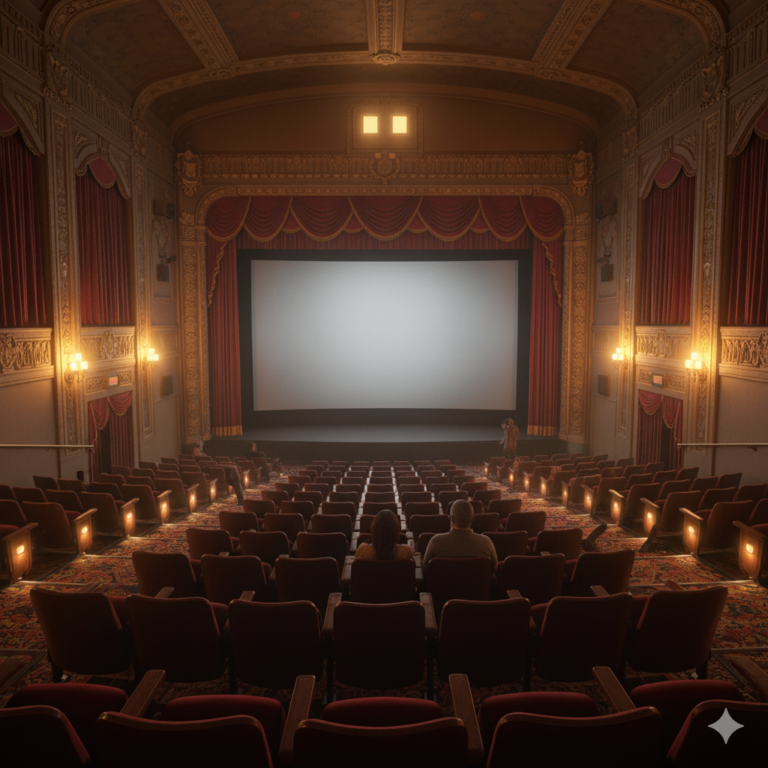
Learning how to run a live commentary session while watching a movie remotely has become an essential skill for film enthusiasts, critics, podcasters, and friend groups scattered across different cities or countries. The practice combines the social experience of communal movie-watching with real-time discussion, creating an interactive viewing experience that transcends physical distance. Whether organizing a film club meeting, recording a podcast episode, or simply wanting to share reactions with friends during a premiere, mastering remote movie commentary opens up new possibilities for engaging with cinema. The challenges of remote commentary are distinct from in-person watch parties. Synchronization issues can derail discussions when participants see key scenes at different moments. Audio feedback creates chaos when multiple microphones pick up the same film soundtrack.
Technical difficulties with streaming platforms, varying internet speeds, and incompatible devices add layers of complexity that require planning and the right tools. These obstacles have frustrated countless groups attempting their first remote watch sessions, often resulting in abandoned efforts or compromised experiences. This guide addresses every aspect of running successful live commentary sessions for remote movie viewing. Readers will gain practical knowledge about selecting appropriate platforms, synchronizing playback across multiple locations, managing audio to prevent echoes and feedback, keeping discussion engaging without overwhelming the film, and troubleshooting common technical problems. The information applies equally to casual friend groups hosting virtual movie nights and professionals producing commentary tracks or live-streamed reactions. By the end, the technical and social skills needed to host polished, enjoyable remote commentary sessions will be clear and actionable.
Table of Contents
- What Equipment Do You Need to Run a Live Commentary Session While Watching a Movie Remotely?
- Best Platforms and Software for Synchronized Remote Movie Watching
- Achieving Perfect Synchronization During Remote Commentary Sessions
- How to Manage Audio and Prevent Feedback During Remote Movie Commentary
- Common Technical Issues and Troubleshooting Remote Watch Parties
- Etiquette and Discussion Flow for Live Remote Movie Commentary
- How to Prepare
- How to Apply This
- Expert Tips
- Conclusion
- Frequently Asked Questions
What Equipment Do You Need to Run a Live Commentary Session While Watching a Movie Remotely?
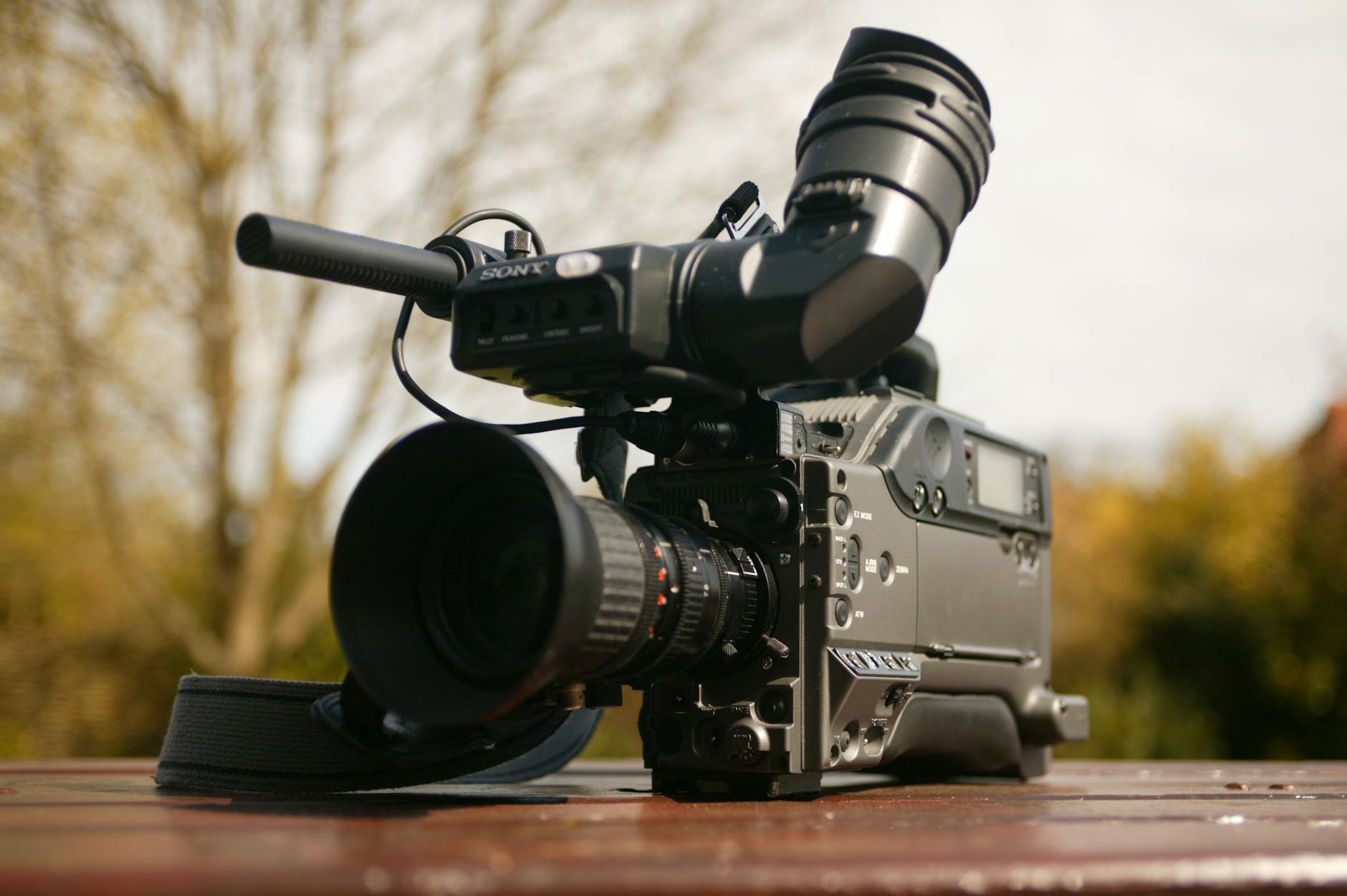
The foundation of any successful remote movie commentary session rests on having appropriate equipment that balances quality with accessibility. Not every participant needs professional-grade gear, but understanding the minimum requirements prevents frustrating technical failures mid-session. The basic setup involves three categories: audio capture, video display, and communication infrastructure. Each participant needs a reliable microphone, a device capable of playing the chosen film, and stable internet connectivity for voice communication. Audio quality matters more than most participants initially realize. Built-in laptop microphones pick up room echo, keyboard clicks, and the movie’s audio playing through speakers, creating an unpleasant listening experience for everyone. USB microphones in the fifty to one hundred dollar range dramatically improve clarity. Popular options include the Audio-Technica ATR2100x, Blue Yeti Nano, and Samson Q2U.
These microphones offer cardioid pickup patterns that focus on the speaker’s voice while rejecting sounds from the sides and rear. For participants unwilling to invest in dedicated microphones, quality headsets with boom microphones provide acceptable results and solve the speaker feedback problem simultaneously. Headphones are non-negotiable for remote commentary. When movie audio plays through speakers, microphones inevitably capture it, creating echo and making post-session audio unusable for anyone recording the commentary. Closed-back headphones prevent sound leakage better than open designs or earbuds. The display device matters less for audio quality but affects the viewing experience. Participants watching on phones may miss visual details that spark discussion. Laptops, tablets, or television screens connected to streaming devices provide adequate viewing for most purposes.
- Quality microphone (USB condenser or dynamic) or gaming headset with boom mic
- Closed-back headphones to prevent audio bleed from movie soundtrack
- Stable internet connection with minimum 10 Mbps download and 3 Mbps upload speeds
- Computer or device capable of running both the streaming platform and voice communication software simultaneously
Best Platforms and Software for Synchronized Remote Movie Watching
Selecting the right combination of platforms determines whether a remote commentary session runs smoothly or devolves into constant requests to pause and resync. Purpose-built watch party applications have emerged specifically to address synchronization challenges, while traditional video chat platforms serve the communication side. Understanding the strengths and limitations of each option helps organizers make informed choices based on their group’s needs and technical comfort levels. Dedicated watch party platforms like Teleparty (formerly Netflix Party), Disney+ GroupWatch, Amazon Prime Video Watch Party, and Hulu Watch Party integrate directly with their respective streaming services. These tools automatically synchronize playback so that pausing, rewinding, or fast-forwarding on one participant’s screen affects everyone simultaneously. Teleparty extends beyond a single service, supporting Netflix, Hulu, HBO Max, Disney+, and Amazon Prime Video through a browser extension.
The limitation is that all participants must have active subscriptions to whichever service hosts the film. Kast and Scener offer alternatives that work across multiple platforms and allow screen sharing, though video quality may suffer compared to native playback. For the communication layer, Discord has emerged as the dominant platform for commentary sessions due to its low-latency voice chat, screen sharing capabilities, and server structure that allows groups to create dedicated channels for different purposes. Zoom and Google Meet work adequately for smaller groups but introduce more latency and lack Discord’s community features. Some groups split their setup, using a synchronization tool for the movie and Discord exclusively for voice chat. This dual-platform approach often produces the best results because it separates the functions and allows each tool to perform its specialized task optimally.
- Teleparty: Browser extension supporting multiple major streaming services with automatic sync
- Discord: Low-latency voice chat with screen sharing and community features
- Kast: Cross-platform watch parties with voice and video chat integration
- Scener: Virtual movie theater experience with public and private room options
Achieving Perfect Synchronization During Remote Commentary Sessions
Synchronization problems rank as the most common complaint in remote movie watching, and they can completely undermine commentary sessions when participants react to scenes others have not yet seen. Even fractions of a second matter when discussing rapid cuts, comedic timing, or surprising plot developments. Understanding why sync issues occur and implementing preventive measures keeps everyone on the same frame throughout the viewing experience. Network latency causes the majority of synchronization drift. When participants have varying internet speeds, buffering occurs at different rates, gradually pushing timecodes apart. Starting a synchronized countdown does not guarantee continued sync because adaptive bitrate streaming adjusts quality dynamically based on bandwidth, occasionally causing micro-pauses that accumulate over a feature-length runtime.
Watch party extensions address this by constantly communicating playback positions between participants and automatically adjusting to maintain alignment. When using these tools, participants should disable any browser extensions that might interfere with video playback, close unnecessary tabs consuming bandwidth, and connect via ethernet rather than WiFi when possible. Manual synchronization remains necessary when built-in tools are unavailable or when participants use different source copies of a film. The standard practice involves designating one participant as the synchronization leader who announces countdown cues tied to specific visual or audio markers. A common method uses studio logos or title cards: the leader calls out “pressing play when the studio logo appears” or “starting on the frame where the title fades in completely.” Periodic sync checks throughout the film catch drift before it becomes severe. Every thirty minutes, the leader can call out the current timecode, allowing others to pause or scrub to match. Professional commentary recordings often use clapper-style audio markers recorded at the session’s start for precise post-production alignment.
- Use ethernet connections instead of WiFi to reduce latency variations
- Close background applications and unnecessary browser tabs consuming bandwidth
- Designate a synchronization leader responsible for countdown cues and periodic checks
- Employ visual markers like studio logos or title cards for manual sync points

How to Manage Audio and Prevent Feedback During Remote Movie Commentary
Audio management separates amateurish remote commentary from polished, listenable sessions. The challenge involves allowing participants to hear both the movie and each other clearly without creating feedback loops, echo, or overwhelming one audio source with another. Proper configuration before the session starts prevents most issues, though real-time adjustments remain necessary as conditions change. The fundamental rule requires every participant to wear headphones and route movie audio exclusively through those headphones rather than external speakers. This prevents microphones from picking up the film’s soundtrack, which would then transmit to other participants and potentially loop back through their systems. Most voice chat applications include noise suppression features that help, but they cannot fully compensate for movie audio playing openly in a room.
Discord’s Krisp-powered noise suppression and similar features in Zoom work best when filtering out brief background noises rather than continuous audio like a film soundtrack. Balancing movie and voice volumes requires individual adjustment based on each participant’s preferences and equipment. A common starting point sets movie audio at approximately sixty percent of comfortable listening volume, leaving headroom for commentary voices. Push-to-talk versus voice activation presents a stylistic choice with practical implications. Push-to-talk prevents unintentional interruptions and background noise but requires participants to consciously activate their microphones, potentially causing them to miss the beginning of their own comments. Voice activation allows more natural conversation flow but demands properly configured sensitivity thresholds. For groups intending to record their commentary for later release, push-to-talk generally produces cleaner audio that requires less editing.
- Route all movie audio through headphones, never through speakers
- Set movie volume to sixty percent of normal to leave room for commentary voices
- Configure voice chat noise suppression but do not rely on it entirely
- Choose between push-to-talk and voice activation based on group preference and recording intentions
Common Technical Issues and Troubleshooting Remote Watch Parties
Even well-prepared remote commentary sessions encounter technical difficulties. Anticipating common problems and knowing solutions in advance allows hosts to address issues quickly without derailing the entire viewing experience. The most frequent complications involve synchronization drift, audio problems, platform-specific quirks, and participant connection issues. Synchronization drift during playback typically stems from one participant’s connection struggling to maintain streaming quality. Signs include that participant asking about scenes others have already passed or reacting to moments before they appear on other screens. The immediate fix involves everyone pausing while the affected participant catches up or scrubs to match.
If drift occurs repeatedly with the same participant, they should reduce their streaming quality settings, close other devices using the network, or move closer to their router. Some streaming services automatically switch to lower resolution during bandwidth constraints; manually setting a consistent quality level across all participants prevents uneven playback speeds. Audio echo usually indicates someone’s headphones are leaking sound that their microphone captures, or worse, someone watching through speakers despite instructions. The host should request all participants mute briefly while identifying the source. Discord’s user-specific volume controls allow reducing a problematic participant’s input without asking them to adjust their own settings. Complete audio dropouts often relate to voice chat server selection; switching to a different server region may resolve persistent latency or dropout issues. When screen sharing introduces audio problems, confirming that the sharer selected “Share audio” or “Include computer sound” in their sharing settings typically resolves the situation.
- For sync drift: pause collectively, identify the lagging participant, adjust their streaming quality or network priority
- For echo: ensure all participants use headphones, check for sound leakage, use voice chat mute functions to identify the source
- For dropouts: change voice server region, check that no bandwidth-heavy applications run in the background
- For screen share audio issues: verify the sharer enabled audio in their sharing settings

Etiquette and Discussion Flow for Live Remote Movie Commentary
Technical preparation means nothing if the actual commentary lacks structure and consideration. The social dynamics of remote discussion differ from in-person conversation because visual cues disappear, cross-talk becomes unintelligible, and the absence of shared physical space changes how people interact. Establishing ground rules and discussion norms before pressing play creates a more enjoyable experience for everyone. Group size directly impacts commentary style. Sessions with three to four participants can sustain organic conversation where anyone speaks as thoughts arise. Larger groups benefit from light moderation, perhaps with the host occasionally calling on quieter participants or steering discussion when multiple people attempt to speak simultaneously.
Some groups adopt a loose turn-taking approach during dialogue-heavy scenes, saving extensive discussion for action sequences or quiet moments. The balance between watching and talking deserves advance agreement: some groups prefer minimal commentary to preserve immersion, speaking only during natural pauses, while others treat the film as a backdrop for continuous discussion. First-time viewers within a commentary group present a particular challenge. Spoilers become inevitable when repeat viewers discuss foreshadowing or upcoming events. Groups should decide in advance whether to accommodate first-timers by limiting discussion scope or whether the commentary assumes familiarity with the film. Recording sessions for later release adds another consideration, as tangents, inside jokes, and references to non-public information may not translate to outside listeners. Professional commentary tracks typically stay focused on the film itself, while friend-group sessions often value the social tangents as much as the film analysis.
How to Prepare
- **Test all equipment forty-eight hours before the session.** Connect your microphone, verify it appears in your voice chat settings, and record a brief sample to check audio quality. Run the streaming platform you will use and confirm your subscription is active and the chosen film is available in your region. This lead time allows you to troubleshoot problems or obtain replacement equipment if necessary.
- **Create and distribute a technical checklist to all participants.** Include links to required software, browser extensions, and voice chat servers. Specify whether participants need accounts, subscriptions, or installations. List the minimum requirements: headphones, microphone, internet speed, and browser compatibility. Ask participants to confirm readiness at least twenty-four hours in advance.
- **Establish the synchronization method and designate roles.** Decide whether you will use a watch party extension with automatic sync or manual countdown methods. Appoint a synchronization leader responsible for calling timestamps and checking alignment. If recording the session, designate who handles recording duties and test their capture software.
- **Configure voice chat server settings optimally.** Create a dedicated channel for the commentary to avoid interference from other server activity. Set appropriate permissions so participants can speak but cannot accidentally modify channel settings. Test screen sharing functionality if you plan to use it.
- **Plan the pre-session gathering time.** Schedule participants to join fifteen to twenty minutes before the intended start. This buffer allows troubleshooting individual technical issues without delaying the group. Use this time for audio checks, sync tests, and any necessary last-minute coordination.
How to Apply This
- **Conduct individual audio checks as participants join.** Ask each person to speak briefly while you confirm their microphone quality and volume levels. Adjust voice chat per-user volumes to balance quiet and loud participants. Verify everyone hears the test audio clips clearly through their headphones.
- **Run a brief synchronization test before the main film.** Play the first thirty seconds of any video simultaneously, then ask participants to report what they see at a specific moment. This reveals sync issues before they matter, allowing adjustments without spoiling the actual film.
- **Maintain awareness of sync throughout the viewing.** Periodically glance at timecodes during scenes with clear visual markers. If someone’s reactions consistently arrive early or late relative to the group, pause for a quick resync rather than allowing drift to compound.
- **Adapt discussion flow based on real-time group dynamics.** If cross-talk becomes frequent, gently suggest taking turns. If commentary goes quiet, prompt discussion with observations or questions. Stay flexible about the planned commentary style if the group gravitates toward a different approach organically.
Expert Tips
- Lower your microphone gain slightly below optimal levels to create headroom for excited reactions without clipping or distortion, which commonly occurs during surprising plot moments when participants naturally speak louder.
- Create a shared document or chat thread for non-urgent comments that participants want to make without interrupting the current speaker, serving as a running side channel for observations, jokes, and references to discuss after the film ends.
- If recording for publication, announce “recording” before pressing play and keep a visible indicator that capture is active; this reminder encourages participants to stay on topic and avoid potentially problematic tangents.
- Position your microphone correctly relative to your mouth: approximately six to eight inches away and slightly off-axis to reduce plosives while maintaining presence and clarity.
- Keep a backup communication method ready, such as a group text thread, in case the primary voice chat fails; this allows quick coordination to switch platforms without losing contact with participants entirely.
Conclusion
Running a live commentary session while watching a movie remotely demands attention to technical details that in-person gatherings never require. The combination of synchronized playback, clear audio communication, and structured discussion creates something genuinely valuable: shared experience across distance. The skills developed through hosting these sessions apply broadly to remote collaboration, podcast production, and content creation beyond movie commentary specifically.
The effort invested in proper preparation pays dividends through smoother sessions, happier participants, and recordings worth revisiting or sharing. Start with smaller groups and familiar platforms before scaling up to larger sessions or more complex technical setups. Each session provides learning opportunities that inform the next. The remote commentary format continues evolving as platforms add features and tools improve, but the fundamentals of synchronization, audio management, and social consideration remain constant foundations for success.
Frequently Asked Questions
How long does it typically take to see results?
Results vary depending on individual circumstances, but most people begin to see meaningful progress within 4-8 weeks of consistent effort.
Is this approach suitable for beginners?
Yes, this approach works well for beginners when implemented gradually. Starting with the fundamentals leads to better long-term results.
What are the most common mistakes to avoid?
The most common mistakes include rushing the process, skipping foundational steps, and failing to track progress.
How can I measure my progress effectively?
Set specific, measurable goals at the outset and track relevant metrics regularly. Keep a journal to document your journey.